Most people do not think about document management until the exact moment it becomes stressful.
You are filling a job application. A college form needs one more edit. Someone asks for a signed PDF. Your internet is weak, your laptop is somewhere else, and the file you need is buried inside a cloud account you cannot open quickly.
That is when a simple truth becomes obvious: important documents should not depend entirely on perfect connectivity.
An Android phone can be more than a place where documents get forwarded, downloaded, and forgotten. With the right offline workflow, it can become a small document desk in your pocket: write the draft, scan the paper, organize the file, lock the sensitive folder, export the PDF, and send it when you are ready.
The point is not to reject the cloud forever. The point is to stop treating internet access as a requirement for basic control over your own files.
Why Offline Document Management Still Matters
Cloud tools are convenient when everything works. They are less convenient when you are traveling, working from a low-signal area, using shared Wi-Fi, switching accounts, or handling files you do not want scattered across multiple services.
For students, job seekers, writers, and office workers, the problem is rarely one dramatic failure. It is the slow friction of small document chores:
- finding the newest copy of a file
- editing a document without a laptop
- turning a paper form into a digital file
- exporting something as a clean PDF
- keeping private files away from casual browsing
When these jobs are split across five apps and three accounts, your phone starts to feel busy instead of useful.
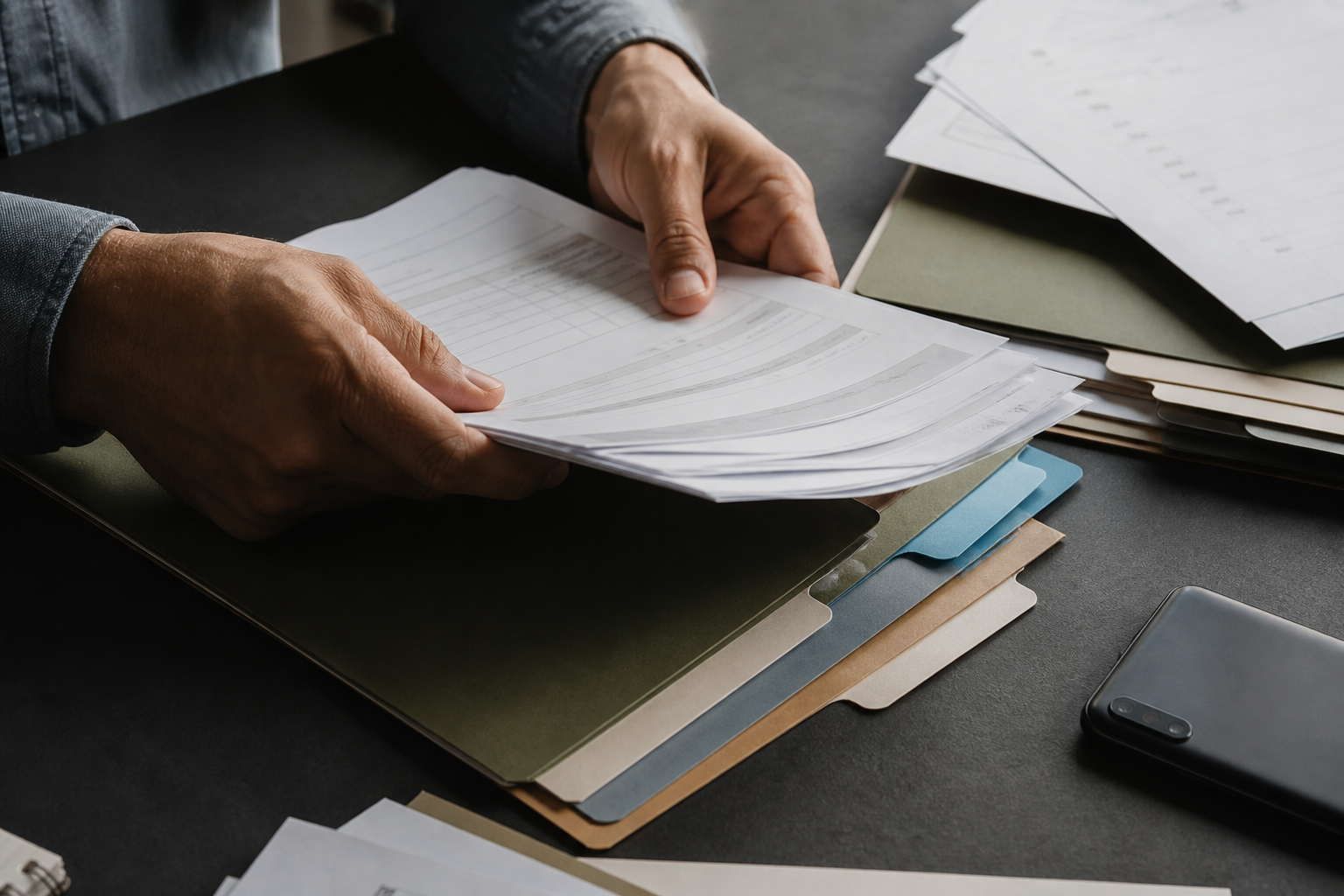
The Local-First Document Workflow
The best document systems are boring in the right way. They reduce the number of places you have to check and make the next action obvious.
Here is a simple local-first workflow for Android:
- Create or import the document. Start with a blank draft, open an existing .docx file, or bring in a file someone sent you.
- Scan anything still on paper. Use OCR when you need text from a printed page instead of a flat photo.
- Edit while the context is fresh. Fix names, dates, formatting, headings, and missing details immediately.
- Organize by real-life use. Folders like resumes, college, invoices, forms, writing, and IDs are easier than abstract tags.
- Protect sensitive documents. Anything personal, financial, academic, or identity-related deserves an extra layer of privacy.
- Export a final PDF. PDF is still the safest format for sharing a finished document without layout surprises.
This is where apps like Wordpad Plus are useful: they combine offline writing, document organization, OCR scanning, PDF export, .docx import, folders, PIN lock, recycle bin, dark mode, and document signing without forcing every basic action through an account.
Cloud Convenience vs Offline Control
There is no need to turn this into a cloud-versus-offline argument. Most people need both. The real question is: which jobs should still work when the internet does not?
| Document job | Cloud-first friction | Offline-first advantage |
|---|---|---|
| Editing a draft | Needs account and connection | Works immediately on device |
| Scanning paper | Often saved into another service | Keeps the file close to the editor |
| Private files | More accounts and sync locations | Fewer unnecessary copies |
| Final sharing | Link permissions can confuse people | Export a PDF and send it directly |
Google’s own help documentation explains that offline access for Docs, Sheets, and Slides has to be set up before you lose connectivity. That is fine when you plan ahead. But many document moments are not planned. They happen in queues, offices, classrooms, trains, and last-minute application windows.
Privacy Is Also a Workflow Issue
People often talk about privacy as if it is only a settings screen. In real life, privacy is also about where files travel.
A resume contains your address, phone number, work history, and sometimes references. A college document can reveal roll numbers, marks, and identity details. A scanned form may include signatures, dates of birth, or financial information.
The Federal Trade Commission’s privacy and security guidance regularly encourages businesses to minimize the data they collect and keep. The same instinct is useful for personal workflows: do not send a sensitive file through more services than necessary just because the default path is convenient.
“The fewer unnecessary places a private document travels, the easier it is to understand where that document actually lives.”
That does not mean every offline app is automatically private. It means local-first habits give you fewer moving parts to audit, an instinct that also aligns with the NIST Privacy Framework idea of understanding and managing privacy risk. If an app also collects no data for core document editing, the workflow becomes easier to trust.
A Practical System for Important Android Documents
If your phone is full of downloads with names like final2.pdf, scan_new.jpg, and document_173829, the fix is not a complex productivity method. You need a naming and folder habit that survives real life.
Try this structure:
- Drafts: editable documents you may still change
- Final PDFs: files ready to send
- Scans: raw scanned documents before cleanup
- Signed: documents that include signatures or approvals
- Archive: old but important documents
For filenames, use a simple pattern:
topic-person-date-status
For example: resume-suyash-2026-final.pdf or college-form-august-draft.docx. You do not need a perfect system. You need names that still make sense two months later.
A simpler way to keep documents ready
If you want document editing, OCR scanning, folders, PDF export, and basic privacy controls in one offline Android workflow, offline-first writing apps like Wordpad Plus are built around that idea.
When Offline Access Changes the Feeling of Work
There is an emotional side to this that productivity advice usually misses.
When your important files are scattered, every document task begins with a small wave of dread. Where did I save it? Which account was it in? Did I already export the PDF? Was the signed copy in email or downloads?
When the workflow is local and organized, the task feels smaller. Open the folder. Edit the draft. Export the PDF. Send the file. Done.
That kind of calm is not flashy, but it is valuable. Especially for people who use their phone as their main computer.
What to Look for in an Offline Android Document Editor
If you are choosing an Android document editor, focus less on feature lists and more on the full workflow.
- Can you write and edit without an account?
- Can you import .docx files when someone sends one?
- Can you scan paper and extract text with OCR?
- Can you export a clean PDF?
- Can you organize files into folders?
- Can you protect sensitive files with a PIN?
- Can you recover mistakes from a recycle bin?
Those are the features that matter when a document needs to move from messy draft to usable final file. Wordpad Plus for Android is designed around that practical path rather than forcing every document into a cloud-first account model.
FAQ
Can I manage documents on Android without cloud storage?
Yes. You can create, edit, scan, organize, and export documents locally on Android if your document editor supports offline storage, folders, OCR, and PDF export.
Why use an offline document editor instead of only cloud tools?
Offline editors are useful when your connection is weak, you do not want to sign in, or you need direct control over sensitive files. Cloud tools are still useful for collaboration, but basic editing should not always depend on connectivity.
What documents should I keep organized on my phone?
Common examples include resumes, job forms, college documents, invoices, letters, signed PDFs, scanned IDs, writing drafts, and reference documents you may need quickly.
Is PDF export important on Android?
Yes. PDF export helps preserve layout when you share a finished document with employers, colleges, clients, offices, or anyone who may open it on a different device.