
How to Make a Resume on Your Android Phone (No Laptop, No Microsoft Word)
You’re sitting somewhere without your laptop — a library, a commute, a waiting room — and you spot a job posting that closes in two hours. Your resume needs updating. You have your phone. And a rising sense of dread.
This is a scenario most people assume has no clean solution. But it does. And it doesn’t involve emailing yourself half-finished Google Docs or fighting autocorrect inside apps that weren’t built for this.
Here’s a practical guide to creating — or updating — a professional resume entirely on your Android phone, without Microsoft Word, without logging into a cloud account, and without losing your mind in the process.

Why Most People Struggle to Build a Resume on Mobile
The honest answer? Most resume apps on the Play Store fall into one of two traps.
The first is the template prison — you pick a pre-built layout, fill in the boxes, export a PDF that looks exactly like everyone else’s. Recruiters can spot these in seconds.
The second is the subscription trap — you build your entire resume, get to the export screen, and discover you need to pay to download it. Charming.
What actually works is a simpler approach: a proper document editor on your phone that gives you real formatting control, no account requirement, and actual file output you can share or save immediately.
What Your Resume Actually Needs (The Non-Negotiables)
Before jumping into the how-to, let’s reset on what a resume file actually requires:
- Rich text formatting — bold for job titles, italics for dates, consistent spacing
- Readable fonts — nothing too decorative, clean hierarchy
- Section headers — Experience, Education, Skills, Contact
- Exportable as PDF or .docx — so you can attach it to any application
- Editable without reinstalling from scratch — your resume will change every few months
That’s it. No animated charts of your “proficiency level.” No QR codes linking to your LinkedIn. Just a clean, readable document that communicates who you are and what you’ve done.
The Step-by-Step: Building Your Resume on Android
Step 1 — Start With a Clean Document
Open your word processor and start with a blank document. Resist the urge to copy-paste from an old file immediately — start fresh and use the opportunity to audit what actually belongs on this version of your resume.
Set your font to something neutral: Roboto, Georgia, or a clean serif. Avoid anything with personality — Comic Sans being the extreme, but decorative display fonts are also a hard no for formal applications.
Step 2 — Structure Before Content
This is the mistake most people make. They start writing before they’ve set up the skeleton. Type out your section headers first:
- Your Name (make it big — H1 equivalent)
- Contact Info
- Summary / Objective (optional but useful)
- Work Experience
- Education
- Skills
- Certifications (if relevant)
Then go back and fill each section. This prevents the blank-page paralysis that kills momentum and makes the process feel way more manageable on a small screen.
Step 3 — Formatting on a Phone Screen
This is where mobile falls short for most apps — but not if you have a proper word processor. Here’s how to handle the formatting without frustration:
- Use bold for job titles and company names
- Right-align your dates to keep the layout clean
- Keep bullet points to 1–2 lines each — scannable, not essays
- Use consistent spacing between sections (one blank line is enough)
Apps like Wordpad Plus handle this well because they’re built around actual document formatting rather than form-filling. You get real text controls — alignment, font size, paragraph spacing — without the bloat of a desktop office suite.
Step 4 — Writing Bullet Points That Actually Land
This is where most resumes die. Bullet points like “Responsible for customer service” are invisible to recruiters. The format that consistently works:
“Action verb + what you did + the result or scale of it.”
So instead of: “Helped with social media”
Write: “Managed Instagram content calendar for a 12K-follower brand, growing engagement by 34% in three months.”
Numbers, scale, outcomes. Even estimated ones are better than none. Recruiters spend an average of 7 seconds scanning a resume — concrete achievements are the only thing that stops that scan.
Step 5 — Export as PDF
Once you’re happy with the content and formatting, export to PDF. This locks your layout in place regardless of what app or device the recruiter uses to open it.
If the employer specifically asks for a .docx file (it happens, especially for ATS parsing), you want an app that supports that format natively. The offline word processor approach works here because you can save in multiple formats without uploading anything to a cloud service first.
The Resume Toolkit: What You Actually Need on Your Phone
| Need | Why It Matters |
|---|---|
| Rich text editor | Bold, italic, heading sizes — the building blocks of readable formatting |
| PDF export | Share a file that looks right on any device without surprises |
| No mandatory account | You shouldn’t have to sign up just to type a document |
| Local file saving | Your resume stays on your device, not on a third-party server |
| OCR scanner (bonus) | Scan a printed certificate or reference letter directly into your document |
One Underrated Trick: Scan Your Certificates Directly
Here’s something most people don’t think about. If you’ve done a course, earned a certificate, or have a reference letter on paper — you can scan it directly into your document workflow using an OCR scanner.
This means you can build a complete application package — resume plus supporting documents — entirely from your phone, without needing a scanner or a desktop computer. Word processors that include a built-in document scanner with OCR (like Wordpad Plus for Android) let you pull text from physical documents directly into an editable format.
That’s not a feature most people associate with a “notepad app” — but it’s the kind of thing that makes a real difference when you’re working from your phone and need everything in one place.
Build your resume without the cloud
If you’d rather keep your documents on your device — no Google account, no auto-sync, no third-party servers — Wordpad Plus is worth trying. It handles rich text formatting, PDF export, and .docx import without asking for a login.

Common Mistakes to Avoid
- Making it longer than one page — for most people with under 8 years of experience, one page is the right call. Two pages reads as noise, not depth.
- Using too many fonts or colors — two fonts max. Color accents only if the industry expects them. Otherwise: clean typography, dark text, done.
- Leaving generic objectives — “Seeking a challenging role in a dynamic organization” tells a recruiter nothing. Either write a specific, targeted summary or skip it entirely.
- Not proofreading on a different screen — export to PDF, then open it fresh to read. The act of opening it like a new document catches errors your eye glosses over while editing.
Frequently Asked Questions
Can I create a professional resume entirely on my Android phone?
Yes. With a word processor that supports rich text formatting and PDF export, you can create a fully formatted, professional resume on Android without needing a laptop. The key is choosing the right app — one that gives you real document controls rather than a form-filling template.
Do I need Microsoft Word to make a resume on Android?
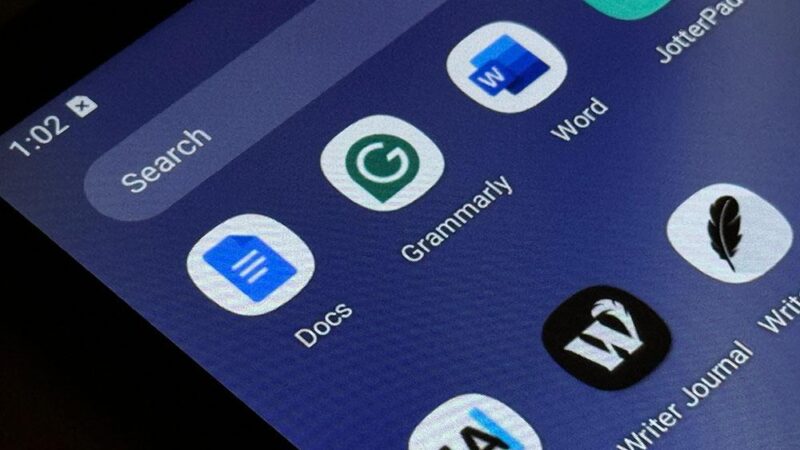
No. Microsoft Word for Android requires a Microsoft account and increasingly pushes users toward a 365 subscription for full functionality. Offline word processors offer the same formatting capabilities — bold, fonts, alignment, lists — without the account requirement or paywall.
Should I save my resume as PDF or DOCX?
PDF for almost all situations — it preserves your formatting across every device. DOCX only if the employer explicitly asks for it, which some do for ATS (applicant tracking system) parsing. Having an app that supports both formats gives you the flexibility to send whichever is required.
What’s the best free resume builder for Android?
Rather than a dedicated “resume app,” a general offline word processor gives you more control and flexibility. Most resume-specific apps lock formatting behind subscriptions or produce template-heavy outputs that look generic. A real document editor lets you design the layout yourself and export in any format.
Is it safe to store my resume on my phone?
Yes — especially if you use an offline-first app that stores documents locally rather than syncing them to a cloud server. Your personal and professional details stay on your device. Apps that require a cloud account before saving are uploading your data to their servers by default, which is worth being aware of.
The Bottom Line
Building a resume on your Android phone isn’t a compromise. For most documents, your phone is more than capable — the limiting factor is usually the app, not the device.
Start with structure, fill in specific achievements, format consistently, export as PDF. That’s the whole process. It works whether you’re on a MacBook Pro or a mid-range Android in a café.
The one thing worth getting right is your tool. A word processor that gets out of your way — no forced logins, no subscription screens, real formatting controls — makes the whole process faster and less frustrating than you’d expect.