
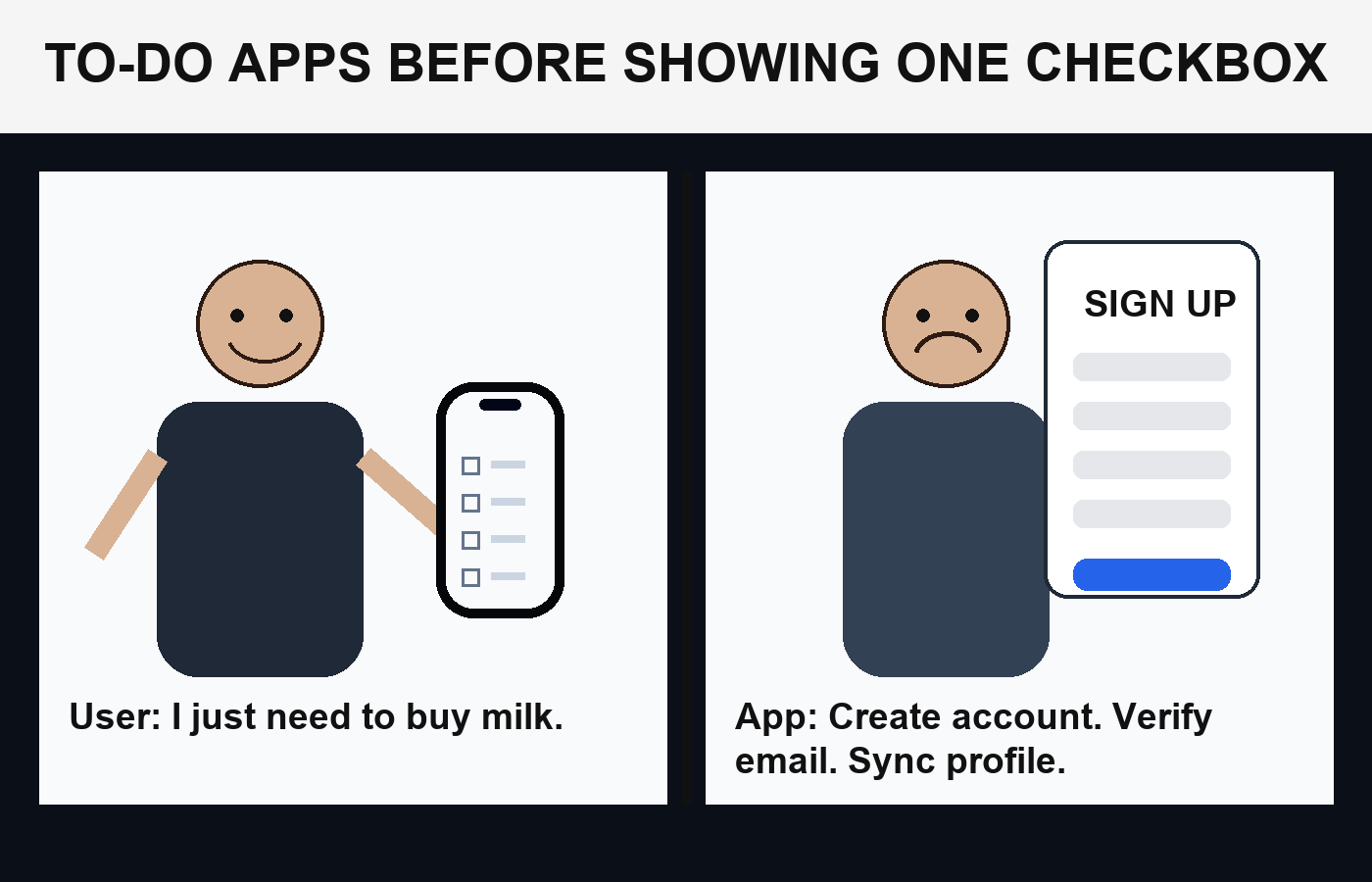
Most to-do apps ask for an email address before they show you a single checkbox. That is not a technical requirement — a task list is a small amount of text on your own phone — so it is worth understanding what the account is actually for, and what changes when you skip it.
Why the sign-up screen is there at all
An account exists to hold your tasks on someone else’s server. That is what makes your list appear on your laptop, survive a lost phone, and stay in step across a household or a team. It is a real feature, and for a lot of people it is the right trade.
It also does other things. An account gives the company a way to reach you, a way to count you, and a way to sell you an upgrade later. Those motives are not sinister, but they explain why the sign-up screen shows up before you have decided whether you like the app — the sign-up is worth more to them at that moment than it is to you.
If you only ever check your list on one phone, you are paying that price for a benefit you never collect.
What “no account” actually means
The phrase covers three fairly different things, and the difference matters:
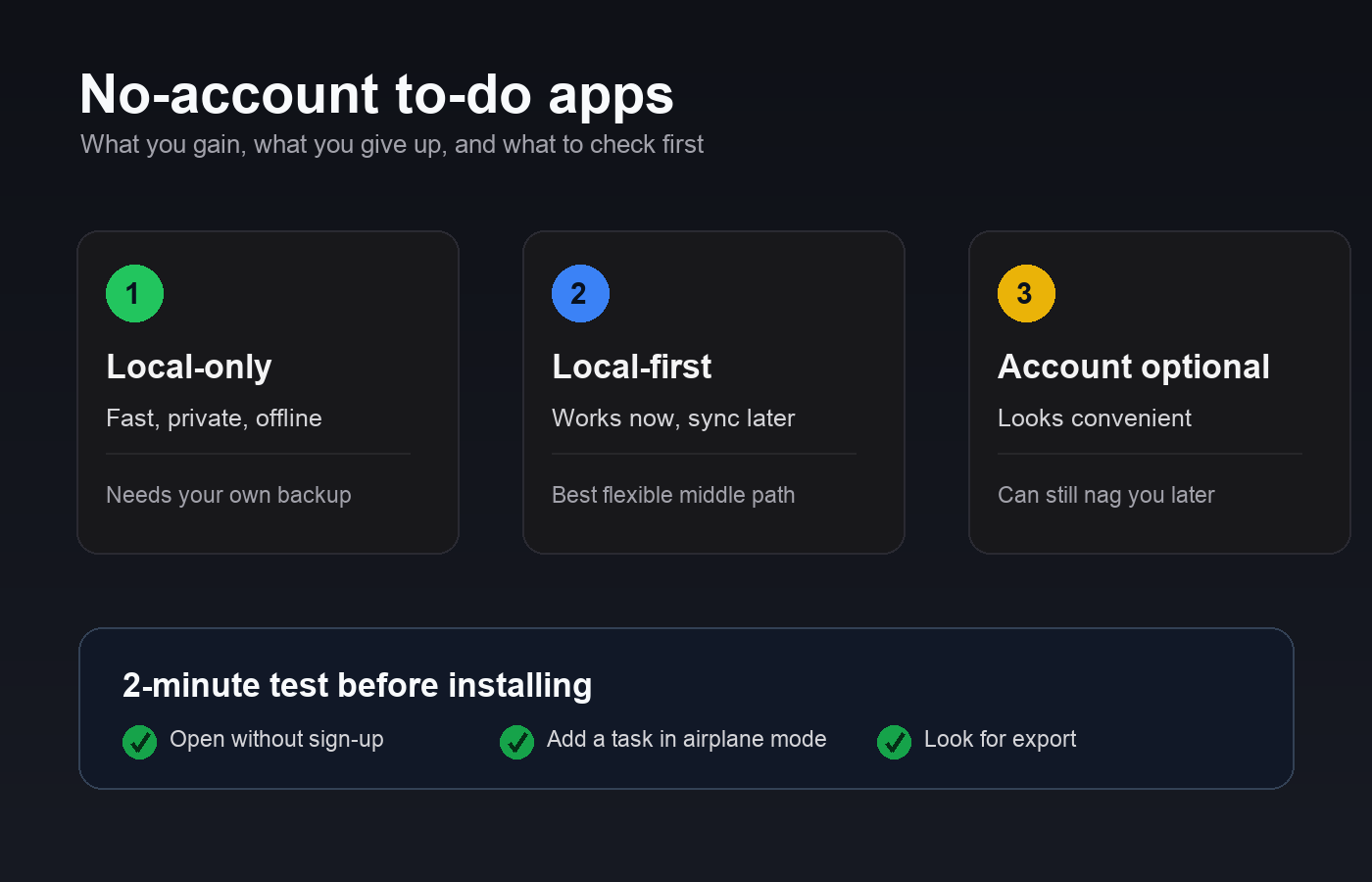
- Local-only. Tasks live in a database on your device. Nothing leaves the phone. If the phone goes, the list goes with it unless you exported a copy.
- Local-first with optional sync. The app works fully offline out of the box, and you can later point it at a server you choose — usually a CalDAV calendar you already have, or one you host yourself. You opt in rather than opt out.
- Account optional, but nagged. The app runs without signing in, but reminds you constantly, and some features stay locked behind the account. Technically accountless; not really.
The first two are what most people mean when they search for this. The third is worth spotting early.
What you give up
Being honest about the cost is the whole point, so: you lose the automatic safety net. With an account, a broken screen is an inconvenience. Without one, a broken screen can be the end of your list.
You also lose effortless multi-device use. Checking something off on a tablet and seeing it disappear on your phone is genuinely useful, and a local-only app cannot do it. And you lose the shared list — the groceries that two people can both edit.
What you get back is smaller but not trivial. The app opens straight into your tasks. It works on a plane, in a lift, and on bad hotel Wi-Fi. Nobody can lock you out of your own shopping list because of a password reset loop. And a list nobody stores is a list nobody can leak.
How to check before you install
You can usually tell inside two minutes:
- Open it and see. A local-first app drops you straight onto an empty list. If the first screen is a sign-up form with no “skip”, that answers the question.
- Turn on airplane mode and add a task. If it saves and survives a restart, the data is on the device.
- Look for an export. An app that lets you export to a file is an app that is not holding your data hostage — and it is how you make your own backups.
- Read what the sync actually connects to. “Sync” pointing at a service you already control is a different proposition from “sync” that means “our servers, our account”.
Android apps that do not ask you to sign in
A few established options, described by what they are rather than ranked:
Tasks.org is open source and licensed under the GPLv3. It works offline, and sync is something you add if you want it — it supports CalDAV, DAVx⁵, EteSync and Google Tasks, so the server can be one you already use or one you host. It carries no ads. If you want a list that can grow into a synced setup later without handing anything over now, this is the mature choice.
OpenTasks is a long-standing, Apache-licensed Android task manager. It stores tasks locally by default and does not sync on its own; pairing it with a CalDAV sync adapter is optional. It leans functional rather than pretty, and it does the job.
Task Bucket is ours, so treat this paragraph accordingly. It is a free Android task manager with no sign-up and no online component at all — the list is on the phone, full stop. It was built around a narrower idea than the two above: give every mental to-do somewhere to land so it stops circling, then get out of the way. There is a Zen Mode for working through the list without the rest of the app in your face. It is deliberately simple, which is the right word for both the appeal and the limitation — there is no sync to configure because there is no sync, and there are no projects, boards or time tracking. If you want a task manager that grows with you, one of the others will suit you better. If the appeal of “no account” is really “no setup”, it may not.
Handle the backup problem yourself
If you go accountless, the safety net becomes your job, and it is a small job. Export your list to a file every so often and put the file somewhere that is not the phone. Once a month is plenty for a personal list; before a phone upgrade is essential.
It is worth doing this once, early, rather than promising yourself you will. The moment you need a backup is never a moment when you have time to make one.
Which way to go
If your list lives on one device and rarely leaves it, an app without an account removes a step you were never getting value from. If you check tasks on a phone and a laptop, or share a list with someone, an account is doing real work and skipping it will cost you more than it saves.
The middle path is the local-first app with optional sync: no account today, and the option of one later, on infrastructure you pick. That is the version of “no account” that closes off the fewest doors.